Introduction
Modern vehicles rely heavily on smart connectivity features like Apple CarPlay and Android Auto. These tools transform your car’s infotainment screen into a seamless hub for navigation, music, and hands-free communication. However, it can be incredibly frustrating when you step into your vehicle, ready for a smooth drive, only to find a blank screen or a frozen system.
Connection failures typically occur at the worst possible moments, leaving you stuck without maps or music. Many drivers immediately assume that a costly trip to the dealership or a professional mechanic is necessary to fix these tech glitches. The reality is that most smartphone-to-car connection drops are caused by minor software bugs, incorrect settings, or faulty hardware links. By learning a few simple, free troubleshooting steps, you can save significant time and maintain a seamless smart driving experience without ever overpaying for professional diagnostics.
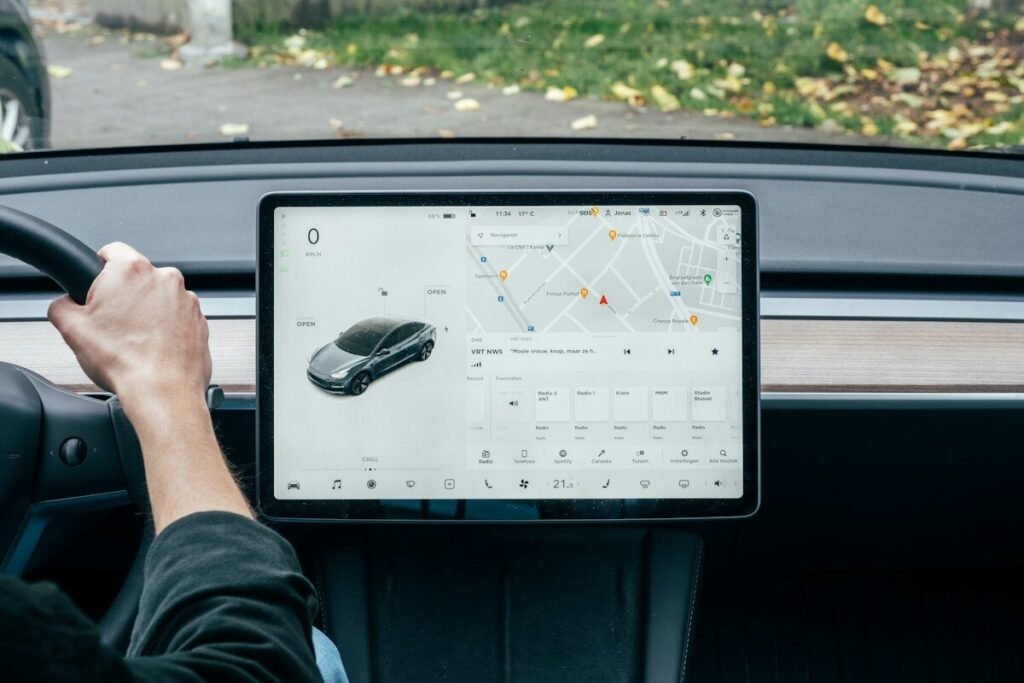
1. Quick Fixes for Wired Connections
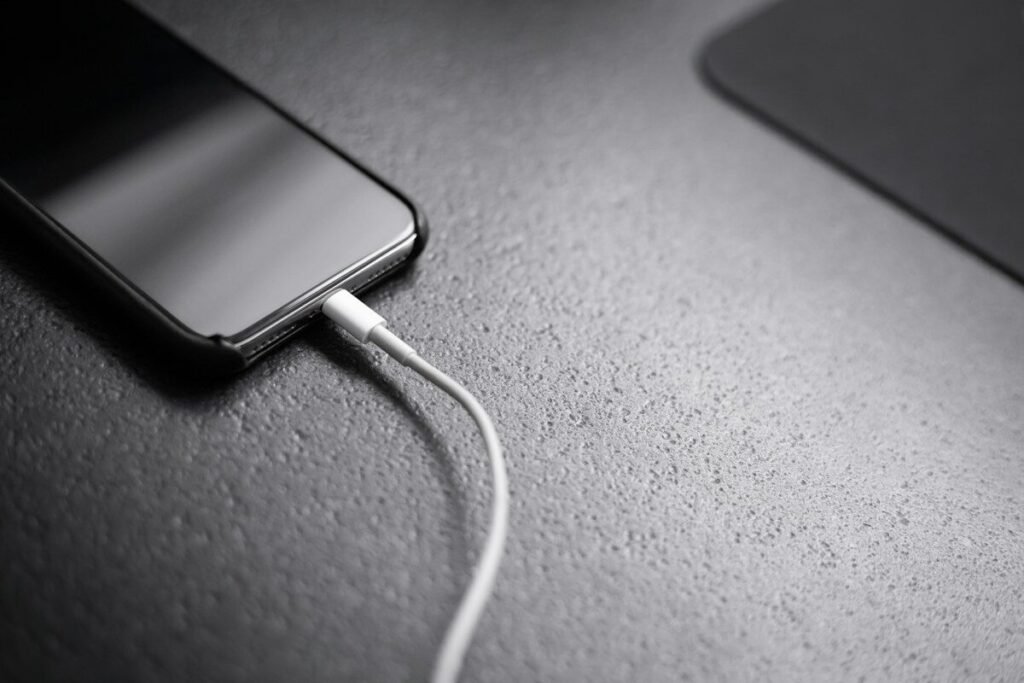
If you use a traditional USB cable to link your smartphone to your vehicle, the hardware connection is the first place you should investigate. Physical wear and tear on cables is the most common single cause of sudden disconnections, especially when driving over bumps or uneven roads.
- Inspect the Cable Quality: Not all USB cables are built the same. Cheap, third-party charging cables often lack the necessary data transfer components required by Apple and Google. Always use an official, certified OEM cable (such as an original Apple Lightning/USB-C or a high-quality Samsung cable) for data transmission.
- Check and Clean the Ports: Over time, lint, dust, and pocket debris can accumulate inside your phone’s charging port or the vehicle’s USB slot. This debris prevents the cable from seating fully, breaking the data circuit. Gently clean the ports using a wooden toothpick or compressed air to ensure a tight physical fit.
- Try Alternative USB Slots: Many modern cars have multiple USB ports, but often only one specific port is wired directly into the infotainment core for data sharing. Look closely for a port labeled with a smartphone or data icon rather than a simple battery/charge symbol.
2. How to Fix Wireless Connection Drops
Wireless Apple CarPlay and Android Auto offer incredible convenience, but they are highly susceptible to signal interference and software sync issues. Because these systems rely on a combined link of Bluetooth (for the initial handshake) and Wi-Fi (for high-bandwidth data transfer), a glitch in either setting can completely break your connection.
- Toggle Bluetooth and Wi-Fi: The simplest solution is often to force a connection reset. Turn off both Bluetooth and Wi-Fi on your smartphone, wait 10 seconds, and turn them back on. This forces the device to search for your vehicle’s infotainment system fresh.
- Forget the Device and Re-pair: If the connection continuously drops, the pairing cache might be corrupted. Go to your phone’s Bluetooth settings, find your car’s name, and select “Forget This Device.” Do the exact same on your vehicle’s screen settings. Restart both your phone and car, then establish a completely brand-new pairing connection.
Quick Troubleshooting Reference Table
| Connection Type | Common Cause | Quick Solution |
|---|---|---|
| Wired USB | Faulty/Cheap Cable, Port Dust | Clean port, use certified OEM cable |
| Wireless (BT/Wi-Fi) | Cache Corruption, Interference | Forget device on both screens, re-pair |
3. Software Updates and Infotainment System Reset
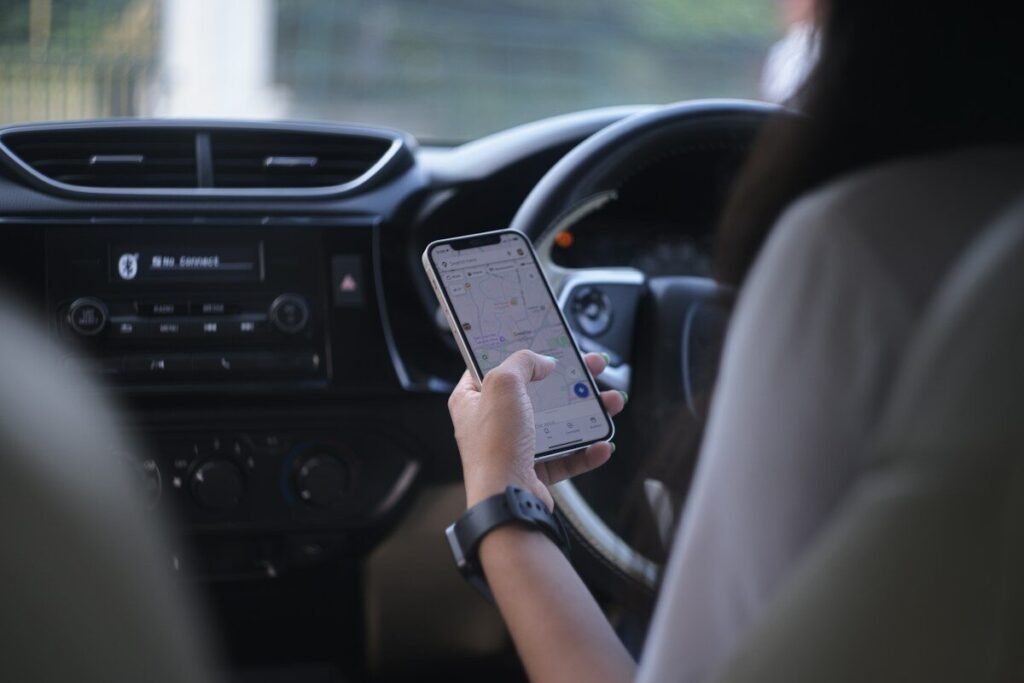
When physical hardware links and wireless signals are functioning properly, the root cause of persistent connection failure is almost always an outdated firmware version or a temporary software deadlock. Just like your smartphone, your vehicle’s built-in computer requires regular updates to stay compatible with the fast-evolving operating systems of iOS and Android.
- Update Your Smartphone OS: Ensure your smartphone is running the latest version of iOS or Android. Apple and Google frequently push micro-patches to resolve connectivity bugs. To check for updates, navigate to your phone’s general settings menu.
- Perform a Hard Infotainment Reset: If the screen remains frozen or refuses to recognize your device, you need to clear your vehicle’s system cache. Many modern cars feature a hidden, tiny reset button near the volume knob or display edge. Gently press this button using a paperclip or a sim-eject tool for 5 seconds to force a hard reboot of the infotainment system.
Conclusion
Troubleshooting Apple CarPlay and Android Auto does not require advanced technical skills or expensive professional tools. By systematically checking your USB cables, resetting your wireless pairing data, and keeping your system firmware updated, you can successfully resolve nearly 95% of all smart car connection drops completely on your own.
The next time your vehicle’s display goes blank, resist the urge to immediately schedule a costly diagnostic appointment at a dealership. Most mobile-to-car tech glitches are entirely fixable in under ten minutes using the simple steps outlined above. Remember these smart driving strategies, keep your connectivity smooth, and make sure you never overpay for basic electronic maintenance on your smart drive.
“Don’t lose your hard-earned money.
Fix it yourself and Never Overpay.”
Leave a Reply